
Boards and pieces · Setup guide
How to change your Chess.com board and pieces.
Start with Chess.com's built-in styles. For additional artwork, use Chessskins to choose boards and pieces independently, apply a complete set, or discover community creations for your Chess.com board.
Change the built-in styles on Chess.com
- On the Chess.com website, open the bottom-left Settings cogwheel and select All Settings.
- In Boards & Pieces, choose the board color and piece style you prefer.
- While playing or watching a game, you can also open the cogwheel beside the opponent's timer and adjust styles in the Board tab.
On the mobile app, open More → Theme. Choose a theme, or select Custom to combine the available options. Chessskins' Chrome extension does not run in the Chess.com mobile apps.
For current menu instructions, see Chess.com's board and piece customization guide ↗.
Use custom artwork with Chessskins
Use Chessskins on Chess.com in desktop Chrome. Static boards, pieces, and the extension are free with a Chessskins account. Animated boards and pieces require Premium or an eligible trial to apply and sync; you can preview them freely. See the current offer on Pricing.
Chessskins changes artwork while preserving gameplay and controls. Compatibility may change when Chess.com updates its boards.
Choose and apply your loadout
Create a free Chessskins account or sign in. Verify your email if prompted. Browse Explore for a complete set, or choose your board and pieces in Loadout. Click Apply changes in the editor to save the active loadout. An editor preview is not applied until you save it.
You have one active loadout. Saved is your list of favorites. If registration is restricted, contact Support for access.
Install and connect the extension
Open the Chessskins Chrome Web Store listing ↗, choose Add to Chrome, then Add extension. Installing it does not start a subscription or charge you. Refresh Chess.com tabs that were already open.
Open Chessskins from Chrome's extensions menu and choose Sign in. On the website, approve Connect extension with the same Chessskins account you used for your loadout.
Open your board and Sync
Open your Chess.com board. In the Chessskins popup, click Sync and check the connection message. When you change your active loadout later, apply the website changes and Sync again.
To restore Chess.com's native appearance, choose Reset all in the popup. This clears your active board and piece selections.
Find your installed extension in Chrome
Click Chrome's puzzle-piece icon, then choose Chessskins to open its popup. If you need to check whether it is enabled or update it, choose Manage extensions.
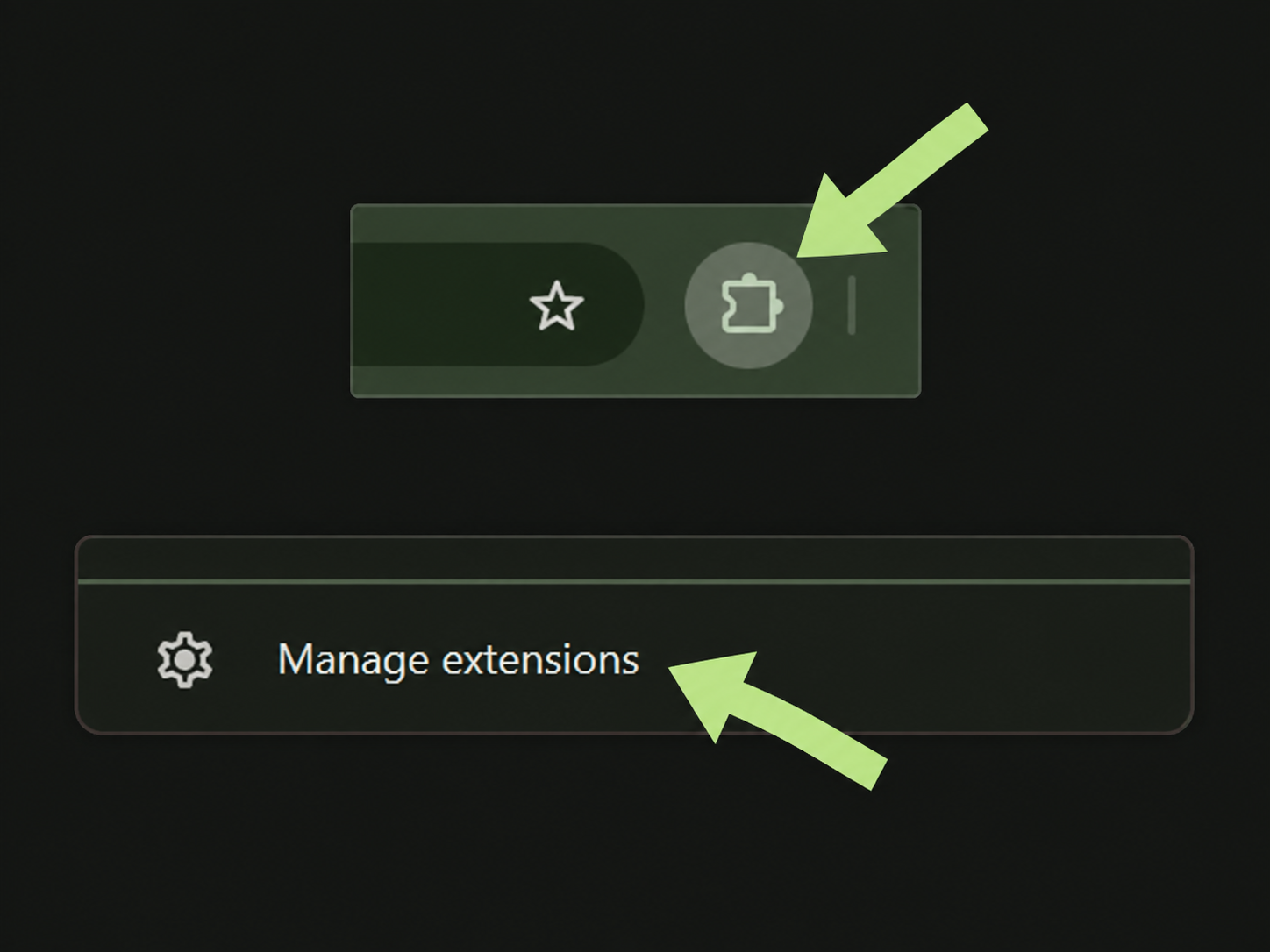
Chrome's extensions menu and management link. This reference shows where to manage an installed extension; installation happens in the Chrome Web Store.
Bring your own board or pieces
Open My Account → My creations to upload a board, pieces, or a complete set. A piece upload needs all twelve images: six white and six black. A complete set pairs those images with an uploaded board or the two-color board palette. Only upload artwork you own or have permission to use.
Drafts stay private. Submissions enter review and become public only after approval. You can mix existing approved catalog items in your loadout without submitting that combination as another creation. Read the upload guide and file requirements before preparing artwork.
If your custom style does not appear
- Confirm the website and extension use the same Chessskins account.
- Check that you clicked Apply changes in Loadout.
- Refresh Chess.com tabs after installing or updating the extension.
- Click Sync and read the popup's connection message.
- For animated styles, check your Premium or eligible trial access. Reduced-motion preferences pause animations.
For further help, contact Support with your Chrome version, the affected page, and the connection message. The loadout FAQ explains applying and syncing.